eMailer Manager Address Book
The eMailer Manager Address Book allows users to store and manage email contacts used when processing outgoing emails through eMailer Manager.
The Address Book now supports two modes:
1. Personal Address Book (User-Specific Private List)
2. Customer-Specific Address Book (Shared Across Users)
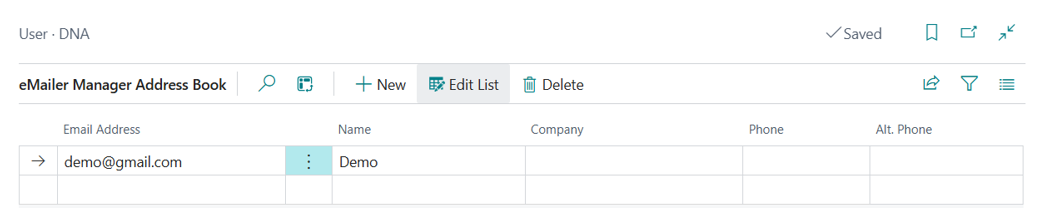
Personal Address Book (User-Specific Scope)
This mode is shown when the Address Book is accessed from the Role Center or from eMailer Setup.
• Contacts are private and visible only to the logged-in user.
• Intended for single-email scenarios.
• Entries are not tied to any customer or document.
• Only general fields—such as Email Address, Name, Company, etc.—are shown.
• Document-specific fields (such as Document Code) are intentionally hidden in this mode.
Screen location: Business Central Home → eMailer Manager → eMailer Manager Address Book

Click to view full-size image.
The eMailer Address Book screen will appear
Click to view full-size image.
Customer-Specific Address Book (Shared Scope)
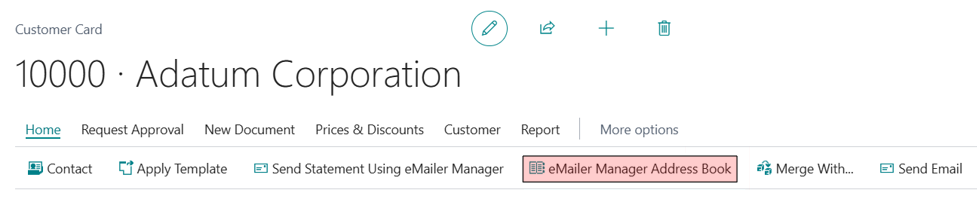
This mode appears when the Address Book is accessed from Customer Card or any supported document within eMailer Manager, such as a Sales Order.
-
Automatically retrieves email addresses linked to the selected customer.
-
Supports both batch and individual email processing.
-
Entries are shared across all eMailer Manager users.
-
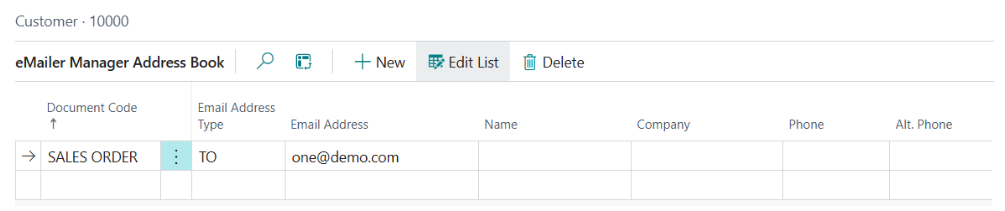
Fields such as Document Code and Email Address Type (To/CC/BCC) appear only in this mode since these settings are document-specific.
Screen location: Customers → Select a customer → Open the Customer Card →Click on the eMailer Manager Address Book action
Click to view full-size image.
The eMailer Address Book screen will appear
Click to view full-size image.
Address Book Fields
Document Code: Displays a list of supported documents. The user can choose any Document Type to associate with the customer's emails.
Email Address Type: The user can choose whether this email should appear in the TO, CC, or BCC section of outgoing emails for the selected document type.
Email Address: The customer's email address.
Name: The customer's name.
Company: The customer's company.
Phone: The customer's phone number.
Alt. Phone: A secondary phone number for the customer.
Edit an Address Book Entry
-
From the menu at the top of the list of entries, click on the Edit List button.
-
The address book screen will be shown, and all of the fields will be editable.
-
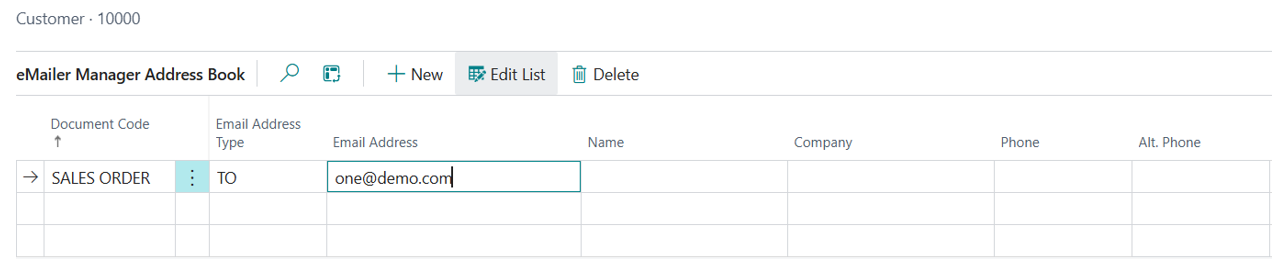
Click once on a field to select it. A border will surround it and the text cursor will be visible.
-
Edit the field, and then press Enter when done. The new value will be saved automatically.

Click to view full-size image.
Click to view full-size image.
Add a New Address Book Entry
-
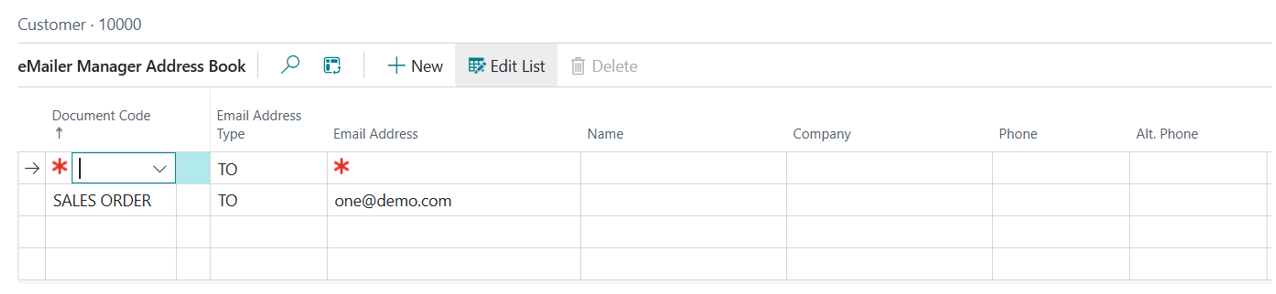
From the menu at the top of the list of entries, click on the + New button.
-
A new blank line will appear at the beginning of the list. Select a Document Code from the drop-down list, and then enter all of the relevant information in the rest of the fields, After you have done so, the new entry will be saved automatically.

Click to view full-size image.
Click to view full-size image.
Delete an Address Book Entry
-
From the menu at the top of the list of entries, click on the Delete button.
-
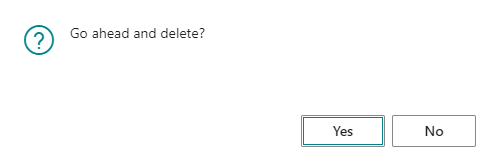
A delete confirmation message will appear. Select Yes to confirm the deletion procedure.

Click to view full-size image.
Click to view full-size image.
Search for an Address Book Entry
-
From the menu at the top of the list of entries, click on the Search button.
-
The Search button will change into a text box. Type your search term(s) into the text box. The results that match your search query will be posted beneath the menu as you type.

Click to view full-size image.

Click to view full-size image.