New Billing Schedule from Project Card
Prerequisites
1. A Billing Schedule Group must be there.
2. A valid Customer must exist.
Create a New Billing Schedule
-
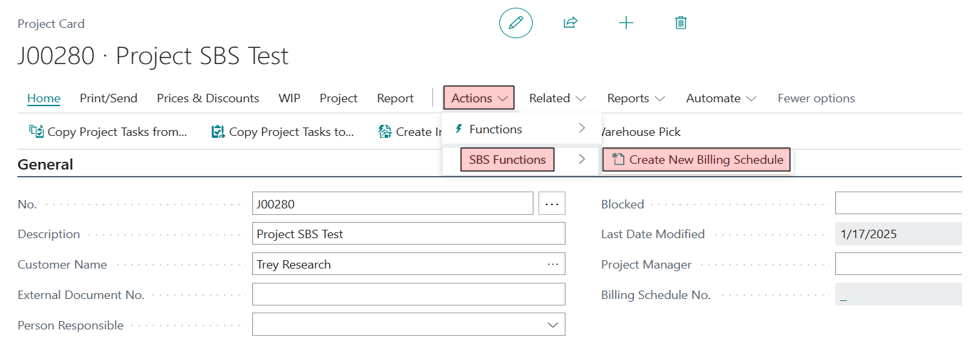
From the Project Card screen, select Actions > SBS Functions > Create New Billing Schedule
-
Once this is done, the Billing Schedule Number will be displayed in the General Tab (above), and the Billing Schedule card screen will appear.
-
In the Duration Tab, the Billing Schedule Group field can be selected by opening an SBS ARCB billing schedule group list screen, and clicking on the Assist buttton. It will display information from the Billing Schedule group.

Once the user clicks on “Create Billing Schedule” the Billing Schedule will be created using the Billing Schedule Group, and the newly created Billing Schedule will open. The following fields will be copied from the Billing Schedule Group.
-
No. series
-
Auto-renewal information
-
Contract status (approved or pending approval)
-
Prorate Partial Period settings
-
Invoice Separately settings
-
Calculation Method for calculating of next invoice date
-
Days Before Start Date
-
Renewal Lines
-
Renewal Option (last billing or X days in advance)
-
Split into Separate Invoices per Quantity
Note: If there is no Starting or Ending Dates on the Project Card (under the Duration tab), then Start and End date will remain blank.
Note: The End Date on the Billing Schedule card page is automatically recalculated when modifying the other fields.
Note: If the user deletes the ARCB Billing Schedule, then the ARCB Billing Schedule will be deleted from that screen.
Note: Projects can be filtered based on thye ARCB Billing Schedule No.
-
Once the ARCB Billing Schedule is created then the Billing Schedule No. to the “BssiARCBBililngScheduleNo.” is stored on the Project Card.
-
The field “ARCB billing schedule No.” located on the Project Card page is a hyperlink that will open the ARCB Billing Schedule. This is a read-only field.
-
The dimensions are copied from the Project card page. These are based on the Customer & Project dimensions.
-
The Bill–to & Ship-to information be copied from the Project card page to the ARCB Billing Schedule.
Multiple Billing Schedules
Multiple Billing Schedules can be created from the Project Card screen. When this is done, the "Multiple" will be displayed in the Billing Schedule Number fields, as shown here.
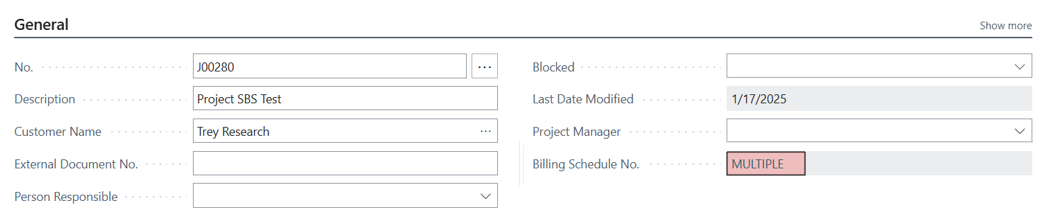
When this field displays "Multiple”, and a user clicks on it, another page will be displayed open and contain the following information:

-
All the Billing Schedules that have this link can be displayed via this screen.
-
If a Billing Schedule has beendeleted, then it will also be deleted from the list.
-
If a user deletes all of the linked Billing Schedules, then it will clear the information from all the fields.
Billing Schedule Card Screen / List Screen
This screen is used to create a billing schedule. The steps are as follows:
-
A new field is added to the Billing Schedule Card screen and the Billign Schedule List screen. It displays the “Project No.” linked to that Billing Schedule. This field will be disabled by default.
-
When the user clicks on the hyperlink it will open the Project Card page.
-
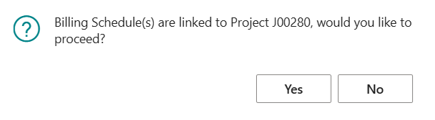
If a Project is deleted, then a confirmation message (show below) will be displayed.