ARCB Unbilled Revenue Batch Process
Here, users can perform several batch options for number of schedules in a batch:
-
Create Initial Journal Entry.
-
Stub Initial Journal Entry.
-
Reverse Stub Initial Journal Entry.
All three options function as they do in the Billing Schedule sub-page. The only difference is the user can select multiple Schedules and apply their process in batches. The corresponding schedules will be updated according to the selected Batch options.
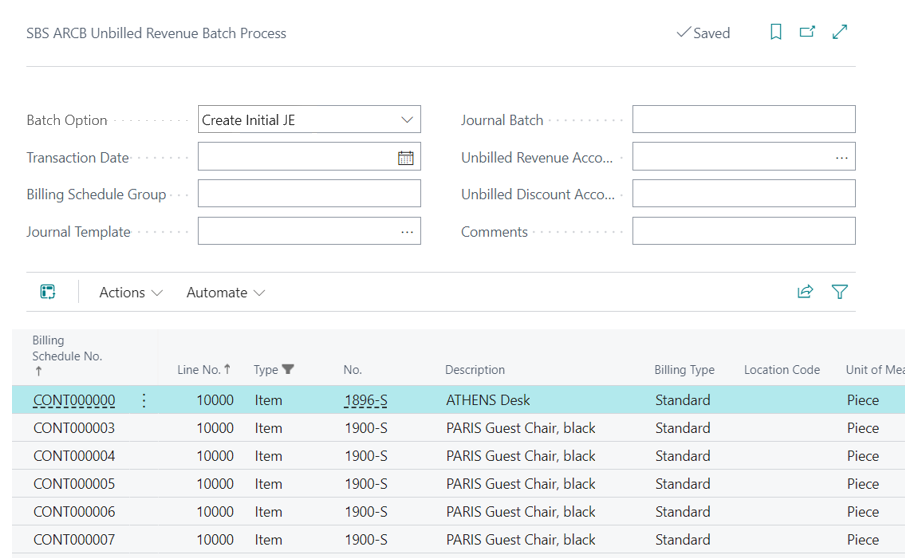
This page allows users to perform the following actions:
-
Create an Initial Journal Entry.
-
Stub Initial Journal Entry.
-
Reverse Stub Initial Journal Entry.
Fields
Billing Schedule Group: This group field is mandatory, and cannot be left blank. This field filters billing schedules associated with this group, and will not be forwarded to the Journal Entry Audit in any of the batch options.
Batch Option: This field offers three batch options.
-
Create Initial JE: When created, an initial journal entry is selected, it will apply only to schedules having unbilled checkbox marked as True on the Schedule Line, and were not journal entries that were already created, and are not stubbed already, or having a line status as Active. Otherwise, the last billing date will be displayed when the initial journal entry is selected.
-
Stub Initial JE: When an initial Stub journal entry is selected, it will apply only to schedules having unbilled checkbox marked as True on the Schedule Line, and were not journal entries that were already created, and are not stubbed already, or having a line status as Active. Otherwise, the last billing date will be displayed when the initial journal entry is selected.
-
Reverse Stub Initial JE: When an initial Reverse Stub journal entry is selected, it will apply only to schedules whose stub initial journal entry has already been created, to schedules having unbilled checkbox marked as True. Only these will be displayed.
Journal Template: By default, this value will be coming from ARCB Billing Schedule Group. If the setup has the Template that will be forwarded to the Batch page if the setup is blank user can fill the template from the Batch page.
Journal Batch: By default, this value will be coming from ARCB Billing Schedule Group. If the setup has the journal batch that will be forwarded to the Batch page if the setup is blank user can fill the journal batch from the batch page.
Unbilled Revenue Account: By default, this value will be coming from ARCB Billing Schedule Group. If the setup has the Unbilled Revenue Account value that will be forwarded to the batch page if the setup is blank user can fill account manually from the batch page.
Unbilled Discount Account: by default, this value will be coming from ARCB Billing Schedule Group. If the setup has the Unbilled Revenue Account value that will be forwarded to the batch page if the setup is blank user can fill account manually from the batch page.
Transaction Date: By default, the work date will be used. Users can also select manually from the Batch Page.
Comments: (optional) Any comment entered re will be forwarded into the journal entry audit.
Process: This action button will Process the entries based on Batch Option Selected.
Example #1: If the Batch Option is selected to Create Initial journal entry, then User can select multiple Schedule and Process button will create Initial journal entry for the selected schedule. When creating initial journal entry is selected only schedules having unbilled checkbox true on schedule line and are not created journal entry and are not stubbed already and having line status as active or last billing will be displayed when create Initial journal entry is selected.
Example #2: If the Batch Option is selected to Stub Initial journal entry, then the User can select multiple Schedule and Process button will Stub Initial journal entry for the selected schedule. When Stub initial journal entry is selected only schedules having unbilled checkbox true on schedule line and are not created journal entry and are not stubbed already and having line status as active or last billing will be displayed when Stub Initial journal entry is selected.
Example #3: If the Batch Option is selected to Reverse Stub Initial journal entry, then User can select multiple Schedule and Process button will Stub Initial journal entry for the selected schedule. When Reverse Stub Initial journal entry is selected only schedules whose stub initial journal entry is already created and unbilled revenue checkbox true will be displayed.
The Process Action cannot be performed if any of the following fields are blank.
-
Unbilled Revenue Account.
-
Unbilled Discount Account.
-
Journal Template.
-
Journal Batch.
The Batch Option drop-down will display the following options:
-
Create an Initial Journal Entry.
-
Stub Initial Journal Entry.
-
Reverse Stub Initial Journal Entry.
Only Billing Schedule lines will appear for which no Initial journal entry is created or not have been Stub initial Journal Entry and the status of line must be Active or Last Billing. For example, a schedule containing three Items for the first Initial journal entry is created, for the second initial journal entry stub has been applied already so in Batch unbilled Revenue only the third Line for that schedule will be displayed as that line has not been created for the initial journal entry nor stub initial journal entry.
ARCB Billing Schedules
-
A journal entry audit is created for the Create Initial Journal entry from Batch page along with the Journal number.
-
For initial batch stub journal entries, a journal entry audit will be created but no Journal number will be generated.
-
In initial reverse stub journal entries, the journal entry audit entry will be deleted.
ARED Billing Schedules
A Deferral Schedule will be created when an initial batch journal entry is used with a deferral item.
Unbilled Revenue with a Revenue Split Item
This function is not supported
Unbilled Revenue with a Milestone Item
-
Milestone Items will display only the Child Items on the Batch Page whose unbilled Revenue Boolean is marked as True on the Billing Schedule line Page.
-
If the End Date is blank for any of the child items, then that item will not be processed further, and will display an error in the report indicating that the End Date is blank.
-
If the Percentage of Completion is blank, then that item will not be processed further, and will display an error in the report indicating that the Percentage of Completion is blank.
-
If the Milestone Child Item has and End Date and Percentage of Completion in the billing schedule line, then it will be processed further and marked as Successful in the Log Report.
-
With Milestone items, audit entries are created along with the generation of the log report.
