Price List Discounts for Billing Schedules
Activate the Discounts Feature
Before the discounted pricing feature can be used, it must be enabled.
-
Go to the Feature Management page, and find the line entitled New sales pricing experience.
-
In the Enabled For column, select All Users.
-
Sign out of Business Central.
-
Sign back in to Business Central.
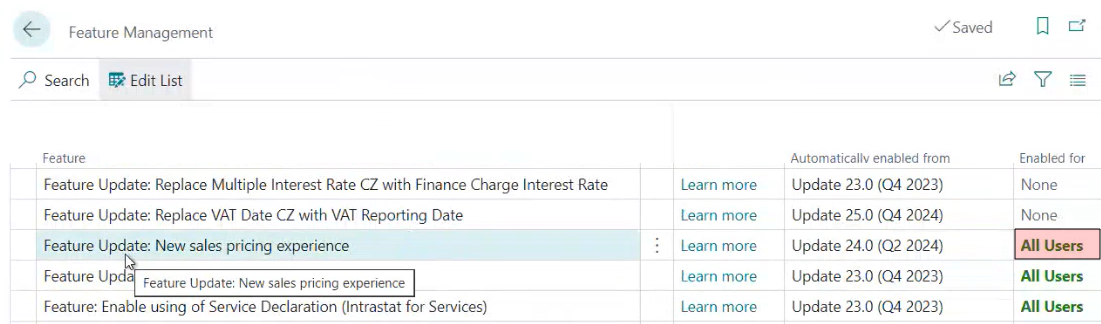
The New sales pricing experience functionality will now be available.
Setting Up a Price List
-
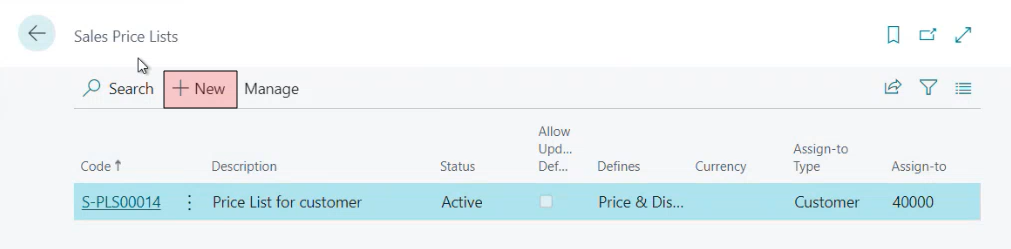
Navigate to the Sales Price List screen.
-
Click on the + New link.
-
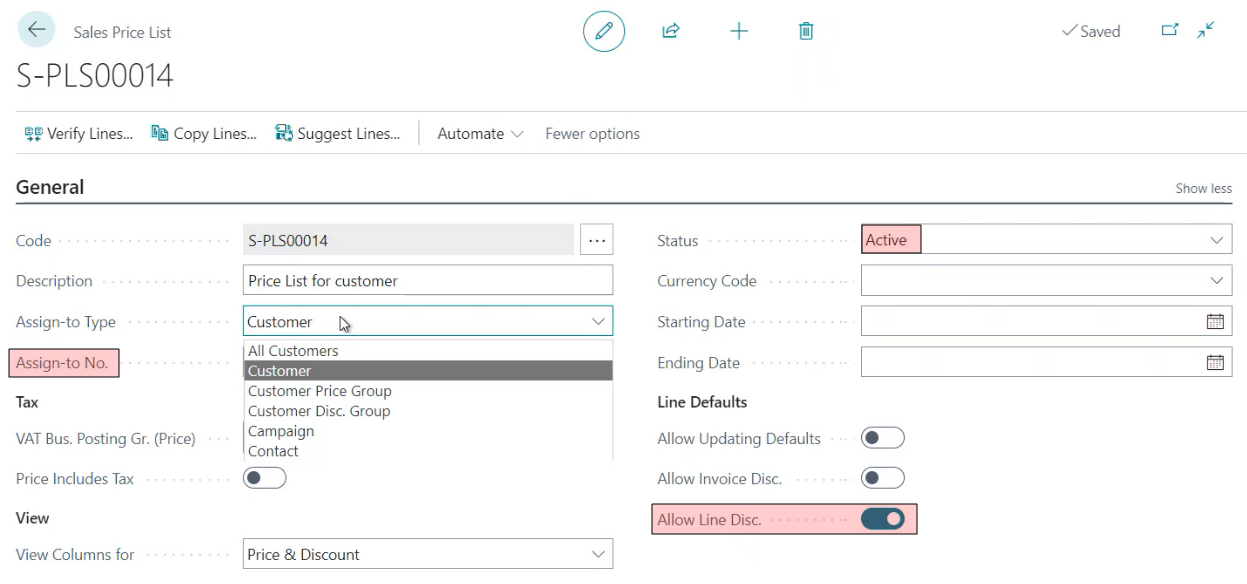
Select a category from the Assign to Type drop-down menu.
-
Enter the Customer Number in the Assign to No. field.
-
Ensure that the Status is set to Active. if the status is Inactive, then the discounts won't be applied to this customer.
-
Ensure that the Allow Line Discount button is enabled.
Note: Currently, all Assign to Type categories are supported except Campaign.
Add a New Line
-
Add a new line by clicking on the New Line link. A new row will appear at the bottom of the grid.
-
Enter the relevant sales data in the row's cells.
-
Next, click on the Verify Lines link, located near the top-left corner of the screen, to ensure that all of the changes you made will be visible, and applied to the new billing schedule.
Note: If a lines has a yellow background, it means that it has not been verified, and its data will not be applied to the updated billing schedule.

Determine the Discount Ranges
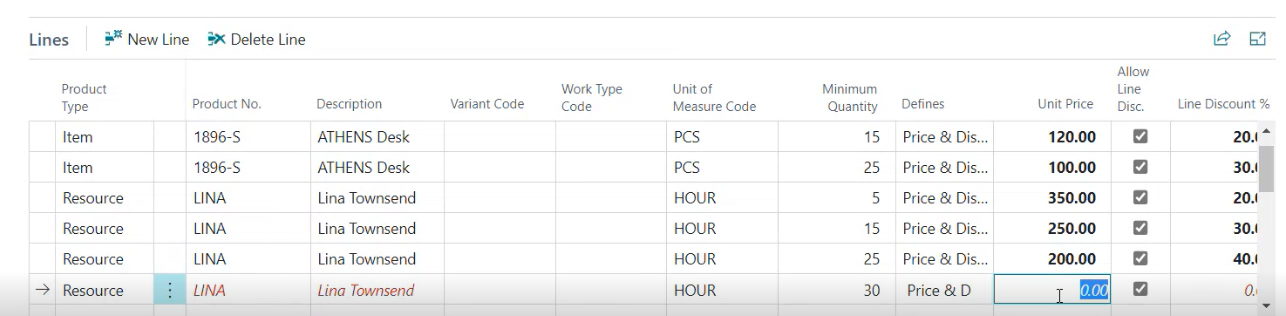
Ranges are set by entering a minimum quantity to qualify for a specific discount, or enter several quantities to create a multi-tiered a series of discounts. In the following example:
-
If the minimum order is 5 units, then a discount of 10% is applied.
-
If the minimum order is 15 units, then a discount of 20% is applied.
-
If the minimum order is 25 units, then a discount of 30% is applied.

Set the Discount Period
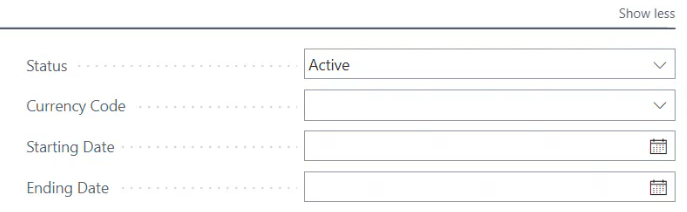
If this is a limited time offer, or a seasonal promotion, then you can set the Start Date and End Date for your discount.
Assign to Type Column Mapping
There will be some restrictions in the View Columns display, and these will depend on the selections made in the Assign to Type drop-down menu.
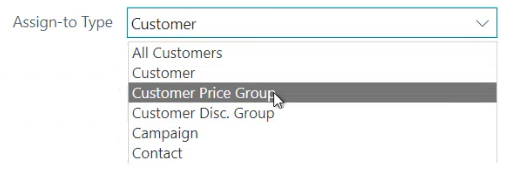
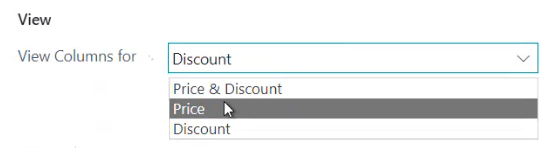
Customer Price Group: The valid View Columns choices for this item are: Price.
Customer Discount Group: The valid View Columns choices for this item are: Price & Discount, Discount
Any invalid View Columns selections will generate an error message.

Discount Examples
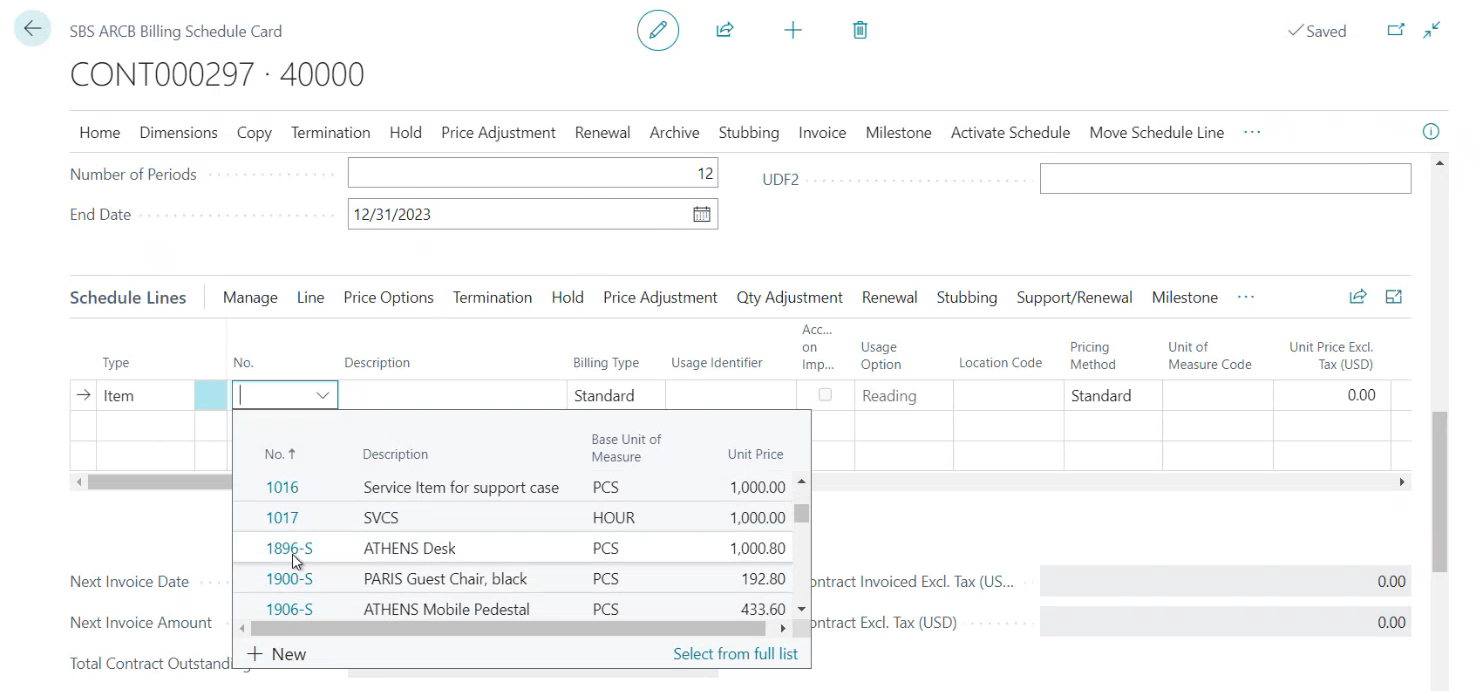
Once the discount ranges have been applied, create a new Billing Schedule. Add a new item and set its quantity to 5.
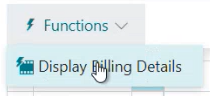
Select Display Billing Details from the Schedule Lines > Function menu.
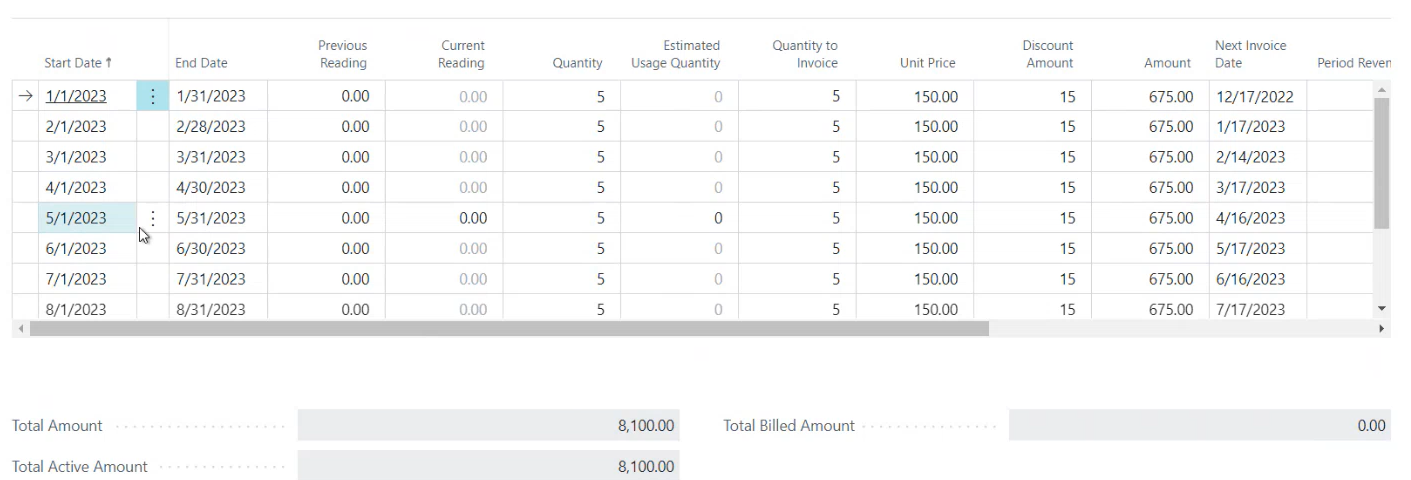
The Discount Amount is 15, and the unit price is 150.00.
Now, change the quantity to 16.
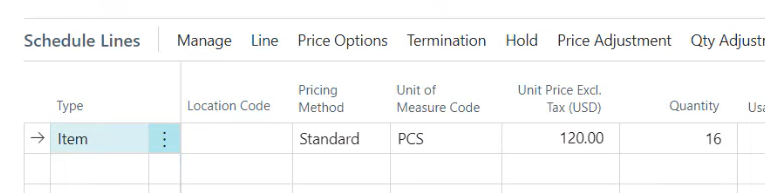
The unit price has changed to 120, and in the Billing Details screen, the Discount Amount is now 24.
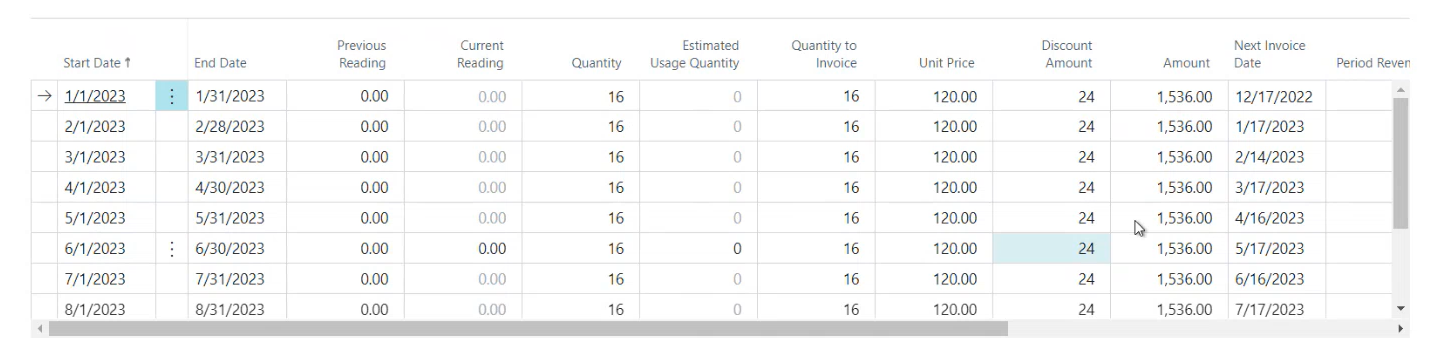
Finally, change the quantity to 26.

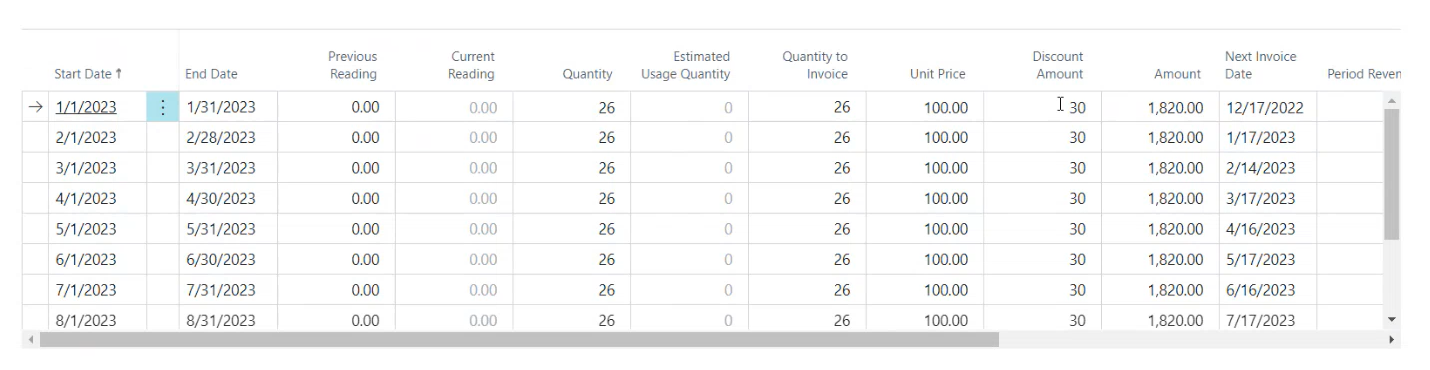
The unit price has changed to 100, and in the Billing Details screen, the Discount Amount is now 30.