Schedule Upcoming Renewal
This is an inquiry page which enables users to get upcoming renewal schedules. User can select the schedule lines that are set to be renewed within the date range specified and send a renewal notification email to each customer.
The page will be a worksheet page where the top part contains the filter fields and below will show the billing schedule lines to be renewed. An outline of how each filter works is as follows:
From/To Date (required): Calculates the End Date of the last Billing Details Line by subtracting Notice Given Days. Then checks if the newly calculated End Date is within the from/To Date range specified.
Note: Both From/To Date must be populated to show any of the lines. The From Date must occur before the To Date.
Schedule No. (optional): Enter a valid schedule number value or choose from the drop-down menu. The user can use filtering to choose more than one schedule number.
Customer No. (optional): Enter a valid customer number or choose a value from the drop-down menu. The user can use filtering to choose more than one customer number.
End User (optional): Enter a valid end user or choose a value from the drop-down menu. The user can use filtering to choose more than one end user.
Billing Schedule Group (optional): Enter a valid billing schedule group or choose a value from the drop-down menu. The user can use filtering to choose more than one billing schedule group.
Renewal Lines Option (optional): Select either Both, Auto-Renew, or Non-Auto-Renew. The default value is Both.
Renewal Assistant Interface
This is the interface that the user will use to generate the renewal notice email. No user prompt will be required, but the user can modify the AI generated response as they see fit.
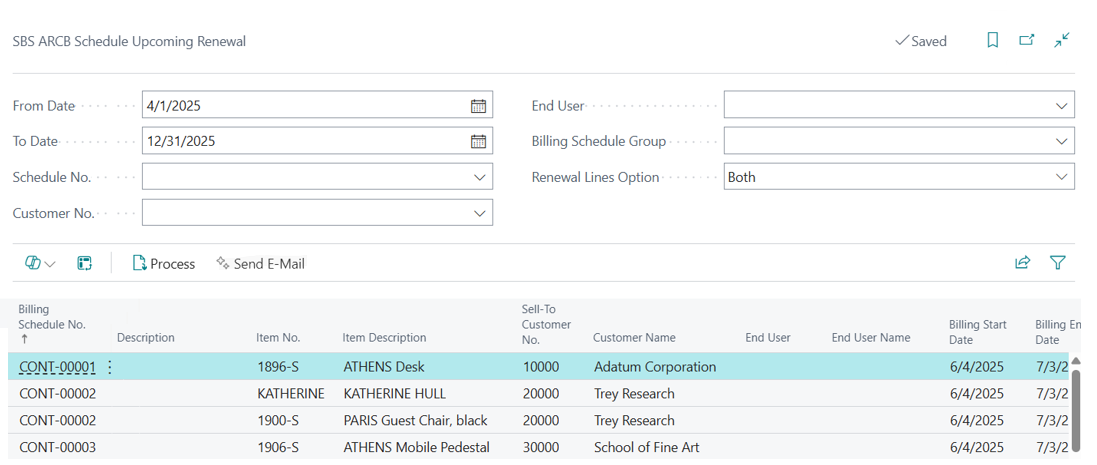
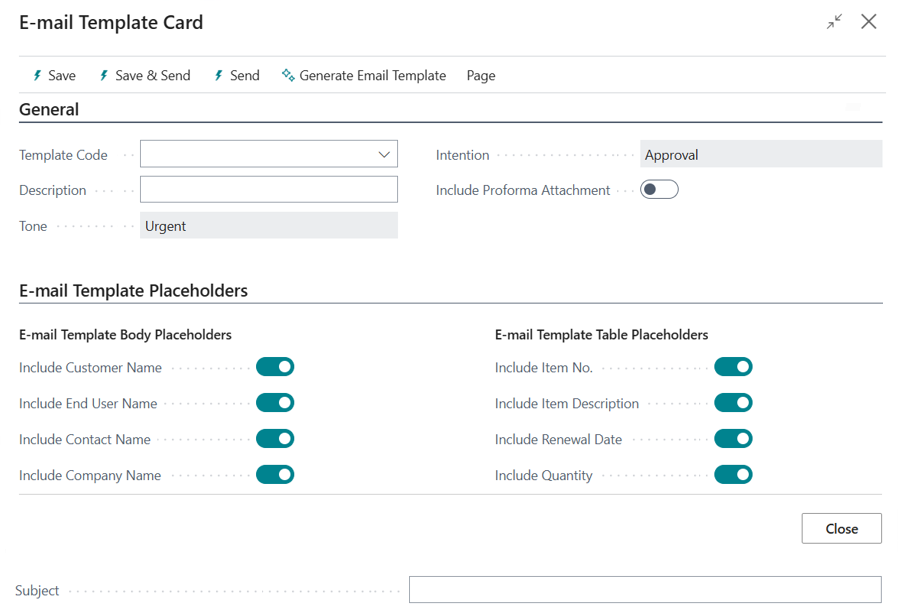
Click the Send E-Mail button, and the Email Template Card screen will appear. From this screen you can perform the following actions: Save, Save & Send, Send, Generate Email Template.
-
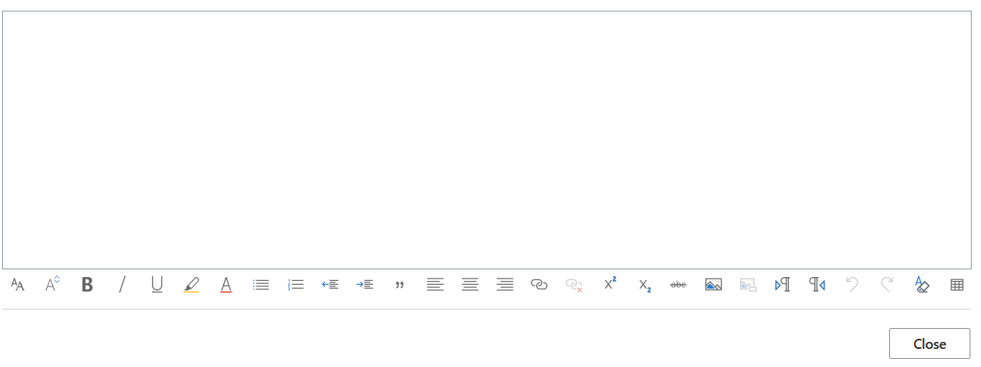
By default, this screen opens with empty template code, description, subject, and body. All E-mail template placeholders will be checked.
-
Since BC cannot delete columns in tables, users can specify what placeholders they want AI to generate.
-
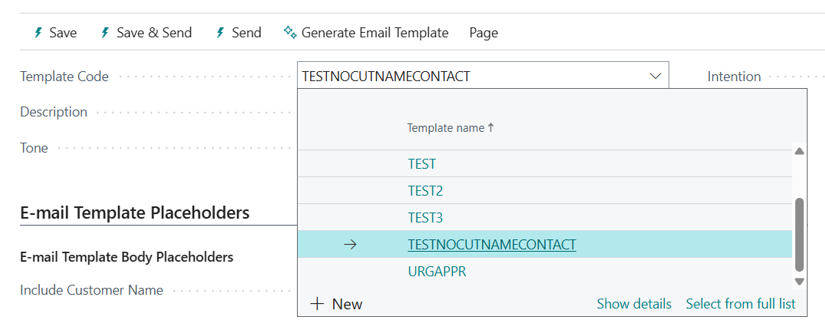
Users can load pre-existing templates by clicking on the drop-down menu in the Template Code section. If the list is emply, the user can click on Generate Email Template action to create the template through AI.
Note: If the user generates an email from AI, the Template Code will be empty, and the user is expected to populate that name to save it.
By default, the tone will be Urgent and Intention will be Approval. Also by default the Include Proforma Attachment will be false. Users can mark it true if they want to attach a PDF file of selected Schedule Lines.
If a Proforma attachment is turned ON in template to be used then a PDF file will be attached to email.
Clicking on Generate Email Template will show AI response for email template. The user can then choose a different Tone or Email Intention.
-
Tone options are: Urgent, Formal, and Friendly.
-
Email Intention options are: Approval, Confirmation, Reminder, and Notification.
Important: For all templates generated, there must be a [[Contract No.]], [[Line No.]], and [[MessageId]] placeholders. It is a requirement built within AI, and missing any of those elements will not allow Power Automate to update BC with the response.
If the user exits the page without saving by clicking on Close, a notification will be displayed to remind the user to save the message.
Note: For assistance with Power Automate, please contact Binary Stream's contact Professional Service Group.
