Serial Number Required Settings
To be able to use the feature where the item serial number from the initial sales order line is copied to the corresponding billing schedule line, the some Microsoft Dynamics 365 for Finance and Operations setup for the item is required. Use the instructions within the Microsoft Dynamics 365 for Finance and Operations documentation  to set up an item with these requirements.
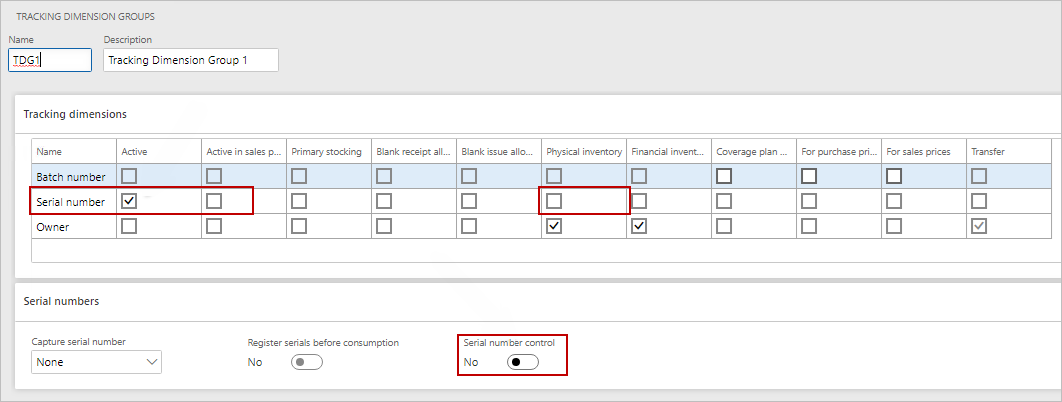
- On the Tracking Dimension Groups page, set up a tracking dimension that has Serial number set to Active and Serial number control set to No.
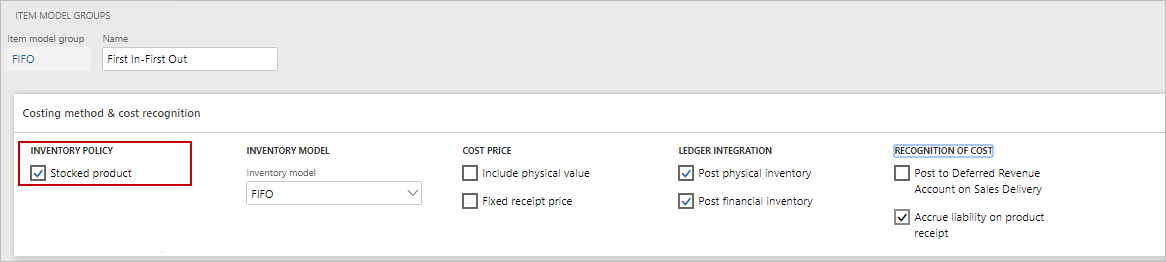
- In the Item Model Groups page, set up an item model group that has the Stocked product option selected.
- When setting up the item, ensure that the following fields are set:
- Tracking dimension group must be a group that has the options as noted in step 1.
- Item model group must be a group that has the option as noted in step 2.
- To ensure the item satisfies these requirements, check the Released Product Details page for the item. To access this page, do the following:
- Go to Product information management > Products > Released Products.
- Select View > Transactions.
- From the list select any item, and review the details.
Also, to post an invoice for items with a quantity greater than one (1), clear the Physical Inventory check box.
After the required Microsoft Dynamics 365 for Finance and Operations setup is completed, ensure that the following settings are done as well:
- On the ARCB Advanced Recurring Contract Billing Parameters page, set Copy serial number to Yes.
- On the Serial Numbers page (Inventory management > Inquiries and reports > Tracking dimensions > Serial numbers), set up serial numbers for the items. This page is standard Microsoft Dynamics 365 for Finance and Operations functionality.
