eMailer Manager Batch
Screen location: Business Central Home → eMailer Manager → eMailer Manager Batch
This screen enables the user to view saved batches, as well as batches that are not completely processed. From this screen, users can edit, modify, and process batches.
Navigating to This Screen
-
From the Business Central home page, click on the eMailer Manager link in the main menu.
-
The eMailer Manager sub-menu will appear. Click on the eMailer Manager Batch link.

-
The eMailer Manager Batch screen will be displayed.
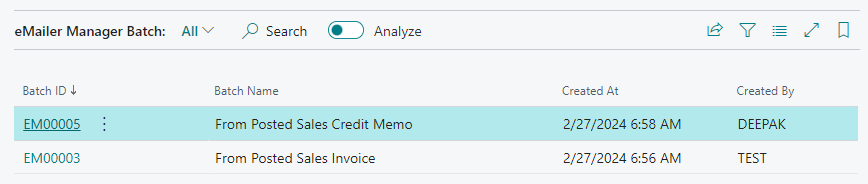
Important: Before selecting eMailer Manager Batch, eMailer Manager Archive Batch, or eMailer Manager Address Book, you must first complete the setup procedures in the Document Setup screen.
View a Batch Entry
-
Click once on the desired row to highlight it.
-
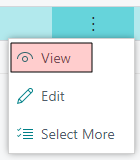
Click on the three vertical dots at the right side of the Batch ID column. A pop-up menu will appear.
-
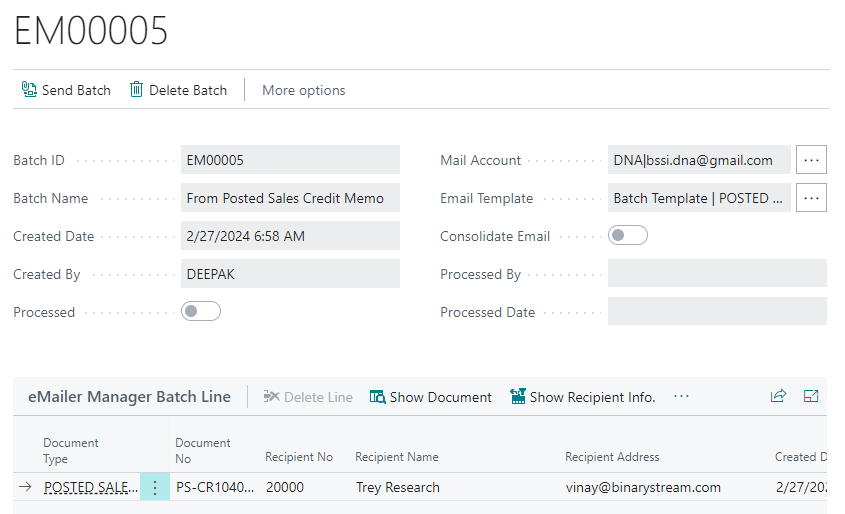
Select View from the this pop-up menu. The following screen will appear, displaying the details for the selected batch entry.
View a Batch Entry - Screen Controls
Batch ID: Used to show/enter the batch ID number from the selected Series from the Setup screen.
Batch Name: Allows the user to enter a meaningful name for the batch.
Created Date: This field is populated with the date and time that the batch was created.
Created By: Displays the user name of the person who created this batch.
Processed: Displays the status of the batch (whether it is processed or not).
Mail Account: Used to show the default eMail Account that is used to send the batch emails. This Email account is populated from Default Email Setup. This field is editable.
Email Template: Displays the default template which that is used to create the mail body for all of the emails in the batch. The Template is initially the default Batch Template selected for a document type on Document Setup of eMailer Setup. This field is editable.
Consolidate Email: Allows the user to send a single consolidated email for all the documents with the same recipient address. All attachments will be included in the consolidated email.
Processed By: Displays the user name of the person who sent or processed the batch.
Processed Date: The date and time that the batch was sent or processed.
eMailer Action: Displays the email preference of the associated Customer/Vendor for the document.
Send a Batch
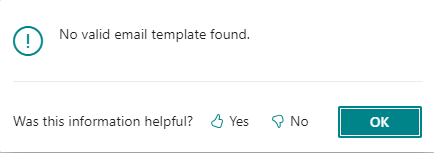
Note: Before you can send a batch, it must have a valid email template. Otherwise an error message will be generated.
Delete a Batch
Click on the Delete Batch button at the top of the screen to delete the batch you are viewing.

Warning: There is no confirmation step when deleting the current batch. Once you press the Delete Batch button, the batch will be deleted immediately. There action cannot be undone.
Delete a Batch Line Document
-
Click once on a batch line to select it.
-
If enabled, then click on the Delete Line button above the Batch Line section near the bottom of the screen.

Display a Batch Line Document
-
Click once on a batch line to select it.
-
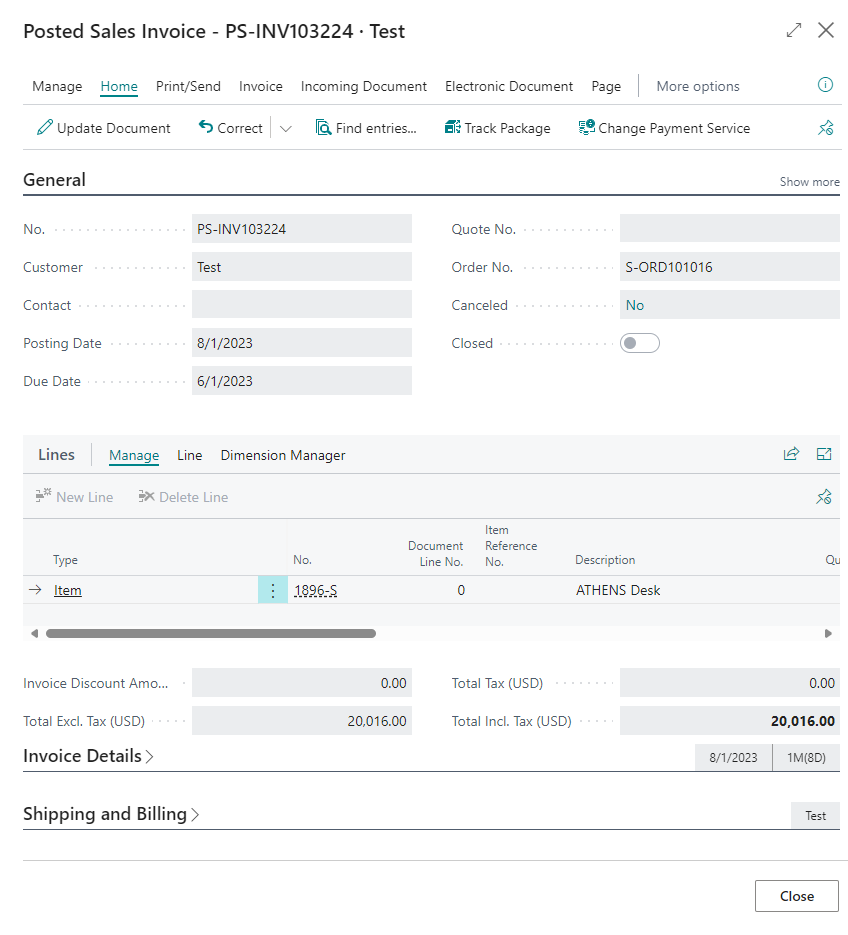
Click on the Show Document button above the Batch Line section near the bottom of the screen.
-
This will display the Posted Sales Invoice Details screen, as shown here.

Display a Customer Card
-
Click once on a batch line to select it.
-
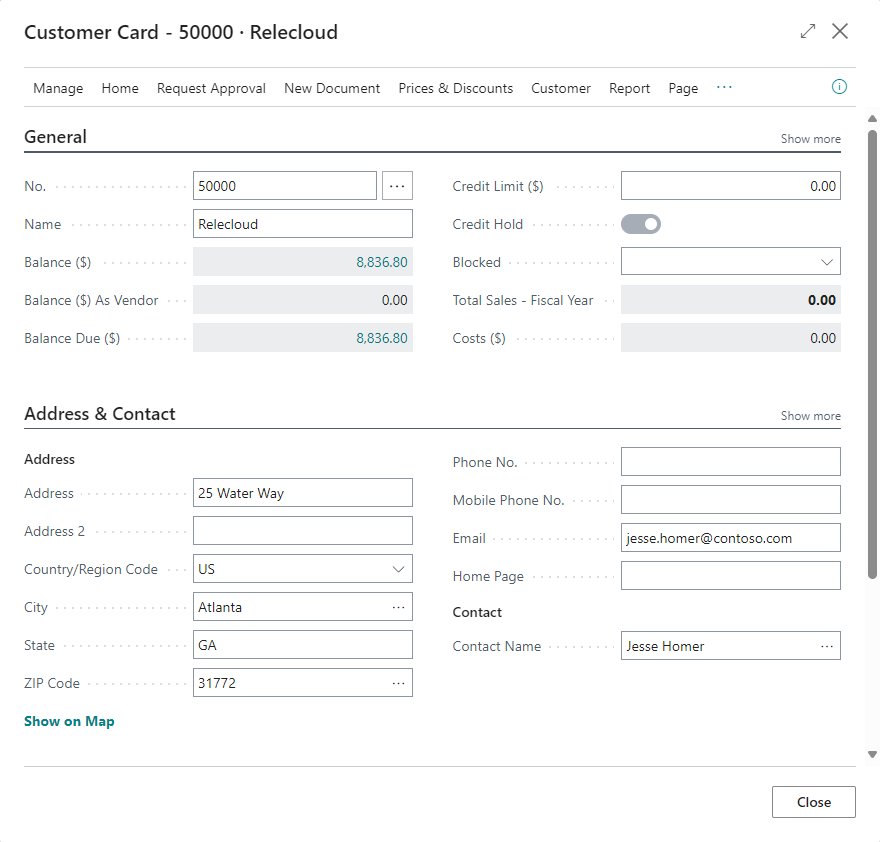
Click on the Show Recipient Info button above the Batch Line section near the bottom of the screen.

This will display the Customer Card, as shown here.
Download Attachments
-
To download any attachments associated with the batch line:
-
Click once on a batch line to select it.
-
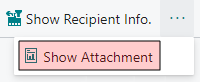
Click once on the three horizontal dots. A pop-up menu will appear.
-
Select Show Attachment from this menu.
-
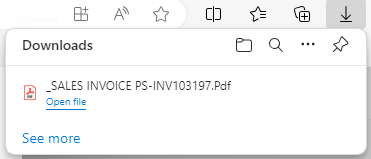
The attachments will be downloaded to your computer. When the download is complete a notification will appear near the top-right corner of the screen.
eMail Action Process Flow
The eMail Action field controls whether documents related to a Customer/Vendor should be considered for email processing by using the following workflow:
-
Select a document from any document page (e.g., Sales Invoice, Sales Order) and select Send Selected to eMailer Manager Batch. This action creates an eMailer Manager Batch containing all the selected documents.
-
Navigate to the eMailer Manager Batch page and select the batch to be processed for email sending.
-
Select Send Email. All documents in the batch are processed.
-
EMM identifies the associated Customer/Vendor. Based on the eMail Action field on the respective record:
-
Email → The document is included in email processing
-
No Action → The document is skipped and not sent via email
-
-
In consolidated processing, only eligible documents are grouped and sent in a single email.
-
In non-consolidated processing, emails are sent individually for each eligible document.
-
The process continues until all documents in the batch are evaluated.
Note: The same rules apply when the eMailer Manager Batch is processed through the Job Queue (emailer automation).
Example:
A batch contains 3 documents:
-
Customer 10000 → Email Action = Email
-
Customer 30000 → Email Action = Email
-
Customer 40000 → Email Action = No Action
When the eMailer Manager Batch process is run:
-
Customer 10000 → Email sent
-
Customer 30000 → Email sent
-
Customer 40000 → Skipped (no email sent)
Consolidated Case:
-
Only Customer 10000 and 30000 documents are grouped and sent
-
Customer 40000 document is completely excluded
Non-Consolidated Case:
-
Separate emails are sent to Customer 10000 and 30000 only
-
Customer 40000 document is not processed
Both the Document Setup and Customer/Vendor Card eMail Action settings are evaluated by EMM before emails are sent. Emails will only be sent when the Document Setup is set to Email and the Customer/Vendor eMail Action is also set to Email; otherwise, the documents will be automatically skipped.
