In this article
MEM Other Dimensions
Use this page to set global values for other dimensions on specific transaction General Ledger entry lines or to use blanks. For example, on a transaction, you can set the dimension values on the header, but for the intercompany accounts, you do not want to use the dimensions, so you can set the dimension values to use a default blank value.
You can apply the other dimension to the following data:
- Vendor records (applies to the accounts payables account G/L line)
- Customer records (applies to the accounts receivable account G/L line)
- Inventory account
- Bank accounts (applies to the cash account G/L line)
- Tax accounts
- Profit & Loss accounts
- Due To and Due From accounts
Replacing Inventory: Example
On the Multi-Entity Management Setup page, the Entity Dimension is set to use the global dimension Department. On the MEM Other Dimensions, the following settings are used:
- Other Dimension area
- Dimension = CUSTOMERGROUP
- Customer area
- Apply Customer Dimension = Selected
- Default = empty
- Inventory area
- Apply Customer Dimension = Selected
- Default = 200
The following invoice is created:
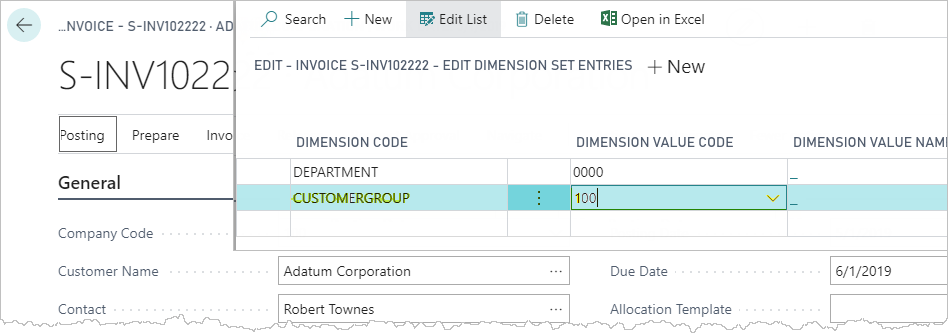
When an invoice is created for the customer, the dimension values are replaced with the MEM Other Dimensions settings. You can review the distributions on the G/L Entries Preview page.
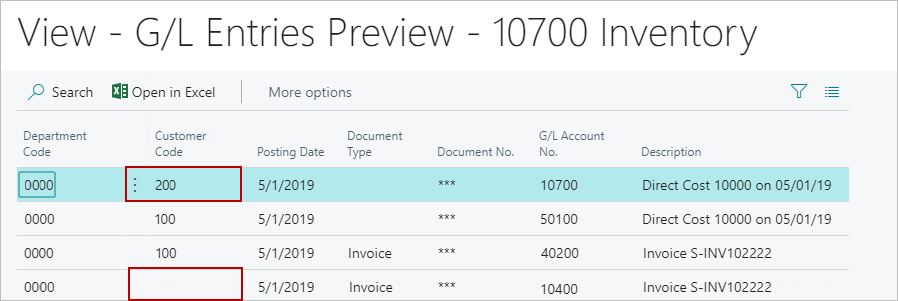
For the first line, inventory entry is replaced with 200. For the fourth line, the customer entry is cleared.
Use Other Dimension Data
To use other dimensions on data, follow these steps:
- Open the MEM Other Dimensions List.
- Select New.
- On the MEM Other Dimension Card, select the other Dimension you want.
- Under each FastTab, do the following:
- Select Apply Dimension to apply the other dimension to the data.
- Select the Default dimension value for the data.
- Close the page.
After adding the use of the other dimension, the other dimension list is updated with the latest changes.
Edit the Use of the Other Dimension
To edit the use of the other dimension, follow these steps:
- Open the MEM Other Dimensions List.
- Select the line you want to edit, and change the values as needed.
- Close the page.
Delete the Use of the Other Dimension
To delete the use of the other dimension, follow these steps:
- Open the MEM Other Dimensions List page.
- Select the line you want to edit, and select Manage > Delete.
- When you are asked to confirm the action, select Yes.
After completing the action, the other dimension list is updated with the latest changes.
Other Dimension List
Displays a read-only list of all other dimensions that have been set up. The list shows the following information:
- Dimension name
- Apply other dimension indicator and the default dimension
Other Dimension Card
The data to which the other dimension can be applied has its own FastTab. The following field boxes are available:
| Field | Description |
| Other Dimension | Select the other dimension that you want to apply to other data. |
| Apply Other Dimension | Select whether the other dimension is applied to the data. |
| Default Dimension Value | When the other dimension is used, select the default dimension for the data. |
