In this article
Workspace: Property Lease Management
Modules > Property Lease Management > Workspaces > Property Lease Management
Use this page to view high-level information about your Property Lease Management environment. Workspaces are a standard part of Microsoft Dynamics 365 for Finance and Operations. For more information about workspaces, see Build operational workspaces .
.
In the Property lease management workspace, you can view the status of your leases, open any of the links to commonly used PLM pages, and also view a PowerBI version of the Unit Availability report. To view the Unit Availability report, you must run the Unit Availability Report Batch Processing.
Overview (Tab)
In the Overview tab of the Property lease management workspace, you can view the status of your leases, and also open any of the links to commonly used PLM pages.
Analytics - Unit availability (Tab)
In the Analytics - Unit availability tab of the Property lease management workspace, you can view the Unit Availability report as a Microsoft Power BI report. For information about integrating PowerBI reports in Microsoft Dynamics 365 for Finance and Operations, see Configure PowerBI.com integration.
Navigating Unit Availability PowerBI Report
After you have the generated data in the report you can view it as a PowerBI report. The PowerBI report is responsive and you can select and adjust any of the filters of the report. You can select or adjust the following filters:
- Category
- Level 1
- Lease number
- Percentage of unit availability
- Start and end dates
The X-axis of the report displays the properties which match the selected filters. The Y-axis displays the percentage of available units in the properties. Underneath the bar chart, there is the Unit availability details section which displays specific details about the properties. Refer to the image below to see an example of how the report looks.
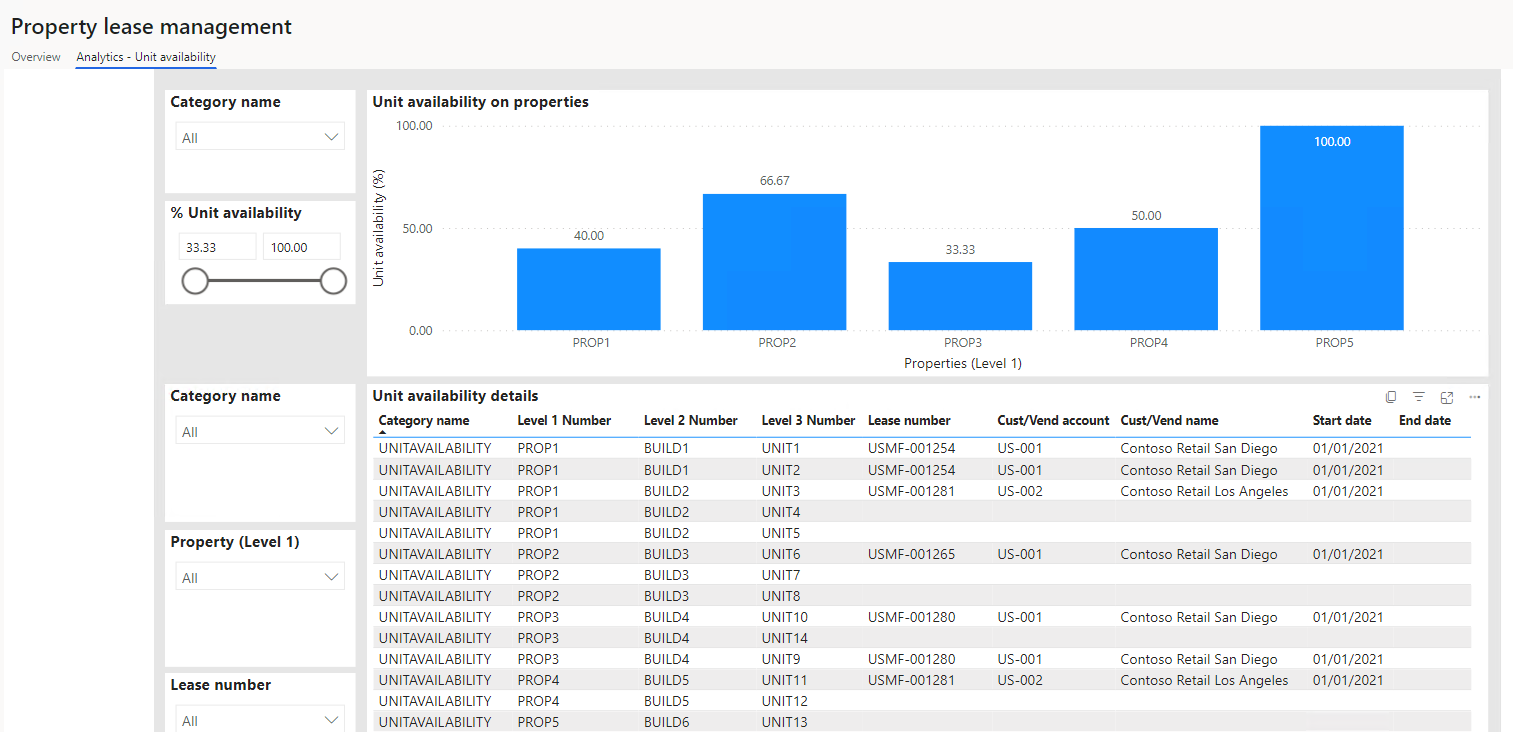
Unit Availability Filters
The unit availability summary report contains the following filters:
| Field | Description |
| Category | Displays the name of the category selected from the list. |
| Level 1 | Displays the name of the property. |
| Number of units | Displays the total number of units of the property. |
| Number of units available | Displays the number of available units of the property. |
| Percent of units available | Displays the percentage of available units. For example, if a property has five units total, and two of them are available, then the percentage of available units is 40 percent. |
Unit Availability Details
The unit availability detailed report contains the following fields:
| Field | Description |
| Category | Displays the name of the category selected from the list. |
| Level 1, 2, and 3 | Displays the level number. |
| Lease number | Displays the lease number associated with the property. |
| Customer/Vendor account | Displays the customer or vendor account associated with the lease. |
| Customer/Vendor name | Displays the customer or vendor name. |
| Start date | Displays the start date of the lease. |
| End date | Displays the end date of the lease. |
For more information about using PowerBI in your PLM workspace, see Analytical Workspaces (using Power BI Embedded).
