In this article
Monthly Recurring Revenue Report
Modules > Advanced recurring contract billing > Inquiries and reports > Monthly Recurring Revenue Report
Use this page to create or review a monthly recurring revenue (MRR) report for a specific time period, typically 12 months.
You can use this report to project recurring revenue - monthly customer charges (excluding any one time, weekly, daily, miscellaneous charges). Recurring revenue is calculated using new contracts, renewals, cancellations, and any changes to existing contracts.
Also, you can print the report for all the contracts or restrict the report to certain contracts or certain customers.
 Notes: :
- Schedules with one-time, weekly, daily, and miscellaneous billing frequencies are excluded from the report.
- Monthly revenue of schedules with a billing frequency other than monthly is prorated on the report (for example, divided by 3 for quarterly billing), regardless if ARED is used and an item is deferrable or not.
- Meter items are included, but you must manually enter the expected revenue amount to the schedules.
- Price escalations and discounts are shown in within the Upgrade/Downgrade amount (the difference in price).
- Holds are shown within the Upgrade/Downgrade amount.
When the hold is applied, the amount is negative. When the hold is removed, the amount is positive. - A terminated line is shown as if a line is ended, within the Churn amount.
- If a line is terminated with the Bill Remaining option, the remaining billing amount is shown within the Upgrade/Downgrade amount.Notes: In the following month, the Bill Remaining amount should be removed from the MRR by displaying the negative value within the Upgrade/Downgrade amount.
For example:
A 100.00 line is terminated in April, and the remaining 500.00 is billed in May. The report shows the following:
| Churn (May) | 100.00 (loss revenue) |
| Upgrade/Downgrade (April) | 500.00 (revenue as remaining unbilled amount) |
| Upgrade/Downgrade (May) | -500.00 (no more 500.00 charges after May) |
- If a billing line is not aligned to the calendar month, it is included in the month in which the billing start date begins. For example, billing line 2015-01-15 to 2015-02-14 is included in Jan 2015.
- The amounts shown in this report are the average in each reporting period.
Generate Report
Generate a monthly recurring revenue (MRR) report:
- In Parameters, specify the From and To date range and select the Reporting frequency and Currency code.
- In Destination, select where you want the generated report to be sent.
- In Records to include, select Filter to specify the criteria for the data that you want to appear on the report.
- In Run in the background, specify the settings for running the report in the background.
Also set the parameters for a recurring report run and for alerts for batch jobs. - Select OK, which generates the report and sends it to the selected destination.
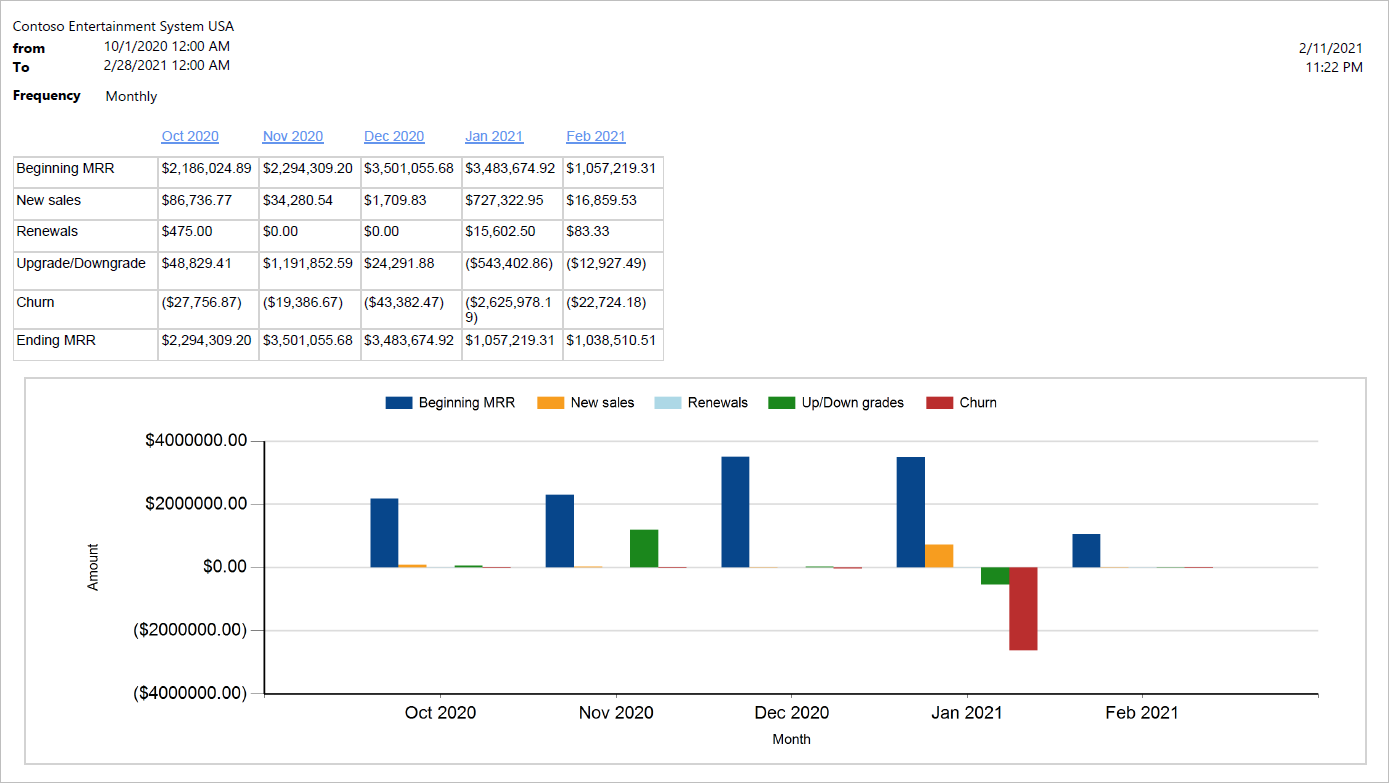
For the selected currency code, the report shows the following information:
| Column Name | Description |
|---|---|
| Beginning MRR | Calculated as the previous month Ending MRR (for example, Beginning MRR for Feb = Ending MRR for Jan). |
| New Sale | Total of all new recurring lines started in this reporting period. |
| Renewals | Total of all renewal amounts in this reporting period. |
| Upgrade/Downgrade | Total of all changes made to the contract amounts in this reporting period, including free months. |
| Churn | Total of all billing amounts that will not continue (appears as a negative amount). |
| Ending MRR |
Calculated as follows: Beginning MRR + New sales + Renewals + Upgrades/Downgrades - Churn |

Fields
This page contains the following fields:
| Field | Description |
| Parameters | |
| From date/To date | Specify the date range for the report. |
| Report frequency | Select the report frequency: Monthly or Quarterly. |
| Currency code | Select the currency code for the report. All data that uses the selected currency code is included in the report. |
| Destination | |
| Select the destination for where the report is to be sent: to the screen, a file (Microsoft Excel or PDF), or directly to a printer. | |
| Records to include | |
| Specify the records that you want to include. | |
| Run in the background | |
| Specify the parameters for when the report runs as a background process. | |
| Batch processing |
Select whether to run the report as part of a batch job:
|
| Task description | Specify a description for the task. |
| Batch group | Select the batch in which the report is to run. |
| Private |
Select whether the report is a private report:
|
| Critical job |
Select whether the report run is critical:
|
| Monitoring category | Select the monitoring category for running the report. |
Buttons
This page contains the following buttons:
| Button | Description |
| Filter | Opens the query dialog where you select the criteria for the data that you want to appear on the report. |
| OK | Generates the report based on the criteria that you entered. |
| Cancel | Closes the window. |
| Run in the background | |
| Recurrence |
Specify the parameters for running the report on a recurring basis. For more information, see Define Recurrence. |
| Alerts |
Specify the parameters for sending alerts about a report run. For more information, see Batch Job Alerts. |