In this article
Configuration Package: Billing Schedule Line
Review the following information for creating billing schedule lines by exporting and then importing configuration packages for the billing schedule line (BssiArcbBillingShceduleLine) table, use table ID 23065675.
 Note: The billing schedule must already exist before lines can be added or updated through the data import.
Create a Billing Schedule Line Import File
To modify a billing schedule line, you must export and then import the billing schedule header data. For detailed steps for configuration packages, follow the instructions in the Prepare a Configuration Package  article in the Microsoft Dynamics 365 Business Central documentation and incorporate these steps:
- Create a configuration package:
- Ensure that you specify the Code, Package Name, and Language ID.
- In the Tables FastTab, select the billing schedule line (BssiArcbBillingShceduleLine) table (23065675).
- Export the configuration package for the table to Microsoft Excel (Package > Export to Excel). The file is saved to your default downloads folder.
- For the line you want to edit, do the following:
- Open the file in Microsoft Excel, and find the line.
- Delete all other lines that you do not need.
 Important: When you delete the other lines, do not delete the header information or modify the format of the file.
 - Edit the line as needed, and save the changes.
If you change the unit price or amount, you must provide the correct value.
If the field does not have data, you do not have to include it in the file.
- Import the updated file (Package > Import from Excel).
- On the import preview, select Import.
- Back on the configuration package window, validate the package (Process > Validate Package ) and then apply the data (Process > Apply Data).
- When you see the confirmation message, select OK.
 View full list of fields for the line configuration package.
| Column Name | Data Type | Required | Description |
|---|---|---|---|
| Billing Schedule No. | Required | ||
| Line No. | Required | ||
| Type | |||
| Item No. | Required | ||
| Description | For this value to be automatically updated from the item record, exclude this field before exporting the configuration package. | ||
| Billing Type | |||
| Location Code | |||
| Unit of Measure | |||
| Unit Price | |||
| Quantity | |||
| Amount | |||
| Billing Frequency | |||
| Billing Start Date | |||
| Billing End Date | |||
| Quantity to Invoice | |||
| Interval | |||
| Status | |||
| Tax Group Code | |||
| Tax Liable | |||
| Tax Area Code | |||
| Auto Renewed | |||
| Usage Option | |||
| Pricing Method | |||
| Usage Identifier | |||
| Initial Reading | |||
| Renewal Lines | |||
| Milestone Item | |||
| Milestone Line No. | |||
| Supp Renewal | |||
| Variant Code | |||
| Unit of Measure Code | |||
| Shortcut Dimension 1 Code | When Multi-Entity Management is installed, this value is required. | ||
| Shortcut Dimension 2 Code | |||
| Revenue Split Parent Amount | |||
| Parent Line No. | |||
| Bssi Indent Line | |||
| Bssi Payment Terms | |||
| Sell-To Customer No. | |||
| Direct Debit Mandate ID | |||
| Payment Method Code | |||
| User Defined Field 1 | |||
| User Defined Field 2 | |||
| User Defined Field 3 | |||
| User Defined Field 4 | |||
| User Defined Field 5 | |||
| User Defined Field 6 | |||
| User Defined Field 7 | |||
| User Defined Field 8 | |||
| Sales Order Number | |||
| Order Line Number | |||
| Calculation Method | |||
| Day of Invoice Date | |||
| User Defined Field 9 | |||
| User Defined Field 10 | |||
| User Defined Field 11 | |||
| User Defined Field 12 | |||
| User Defined Field 13 | |||
| Number of Periods |
When the number of periods is specified, the end date is updated accordingly.
|
||
| End User No. | |||
| Alignment Date | |||
| Dimension Set ID |

Create Billing Schedule Line Import File and Exclude Fields
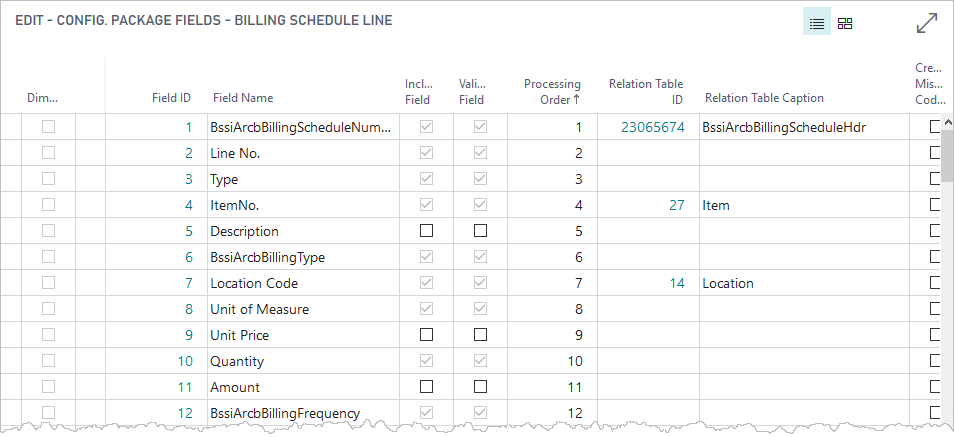
To ensure that the configuration package includes only the fields you want to import, you can exclude fields. Use the Config. Package Fields dialog to clear the Include Field check box to exclude the fields you do not want in the configuration package. Based on the Subscription Billing setup, some fields are automatically updated when they are excluded from the configuration package:
When the following fields are excluded, the values are updated from the item record:
- Description
- Unit Price
When the following fields are excluded, the values are updated from the billing schedule header:
- Start Date
- End Date
- Frequency
- Interval
When the following fields are excluded, the values are updated from the billing schedule group:
- Usage Option
- Pricing Method
When the following field is excluded, the values are updated based on other values for the line:
- Amount (calculated based on the unit price)
To create a billing schedule and exclude certain fields during the import, you can create a configuration package using the instructions from the previous section, Create a Billing Schedule Line Import File, and incorporate these steps.
- Create a configuration package for the billing schedule header (BssiArcbBillingScheduleLine) table, use 23065675.
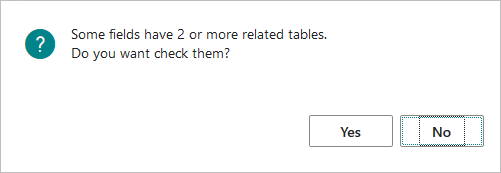
- Select Yes to the following prompt:
- On the Edit - Config. Package Fields dialog, clear the Include Field check box for any field you do not want to export to the configuration package.
- To exclude additional fields, on the Tables FastTab, select Table > Fields to open the Edit - Config. Package Fields dialog.
- On the Config. Package Fields dialog, clear the Include Field check box for these additional fields:
- Export the configuration package for the table to Microsoft Excel (Package > Export to Excel). The file is saved to your default downloads folder.
- Open and edit the file in Excel.
- Follow the steps in Create a Billing Schedule Line Import File for importing and then validating and applying the configuration package.
Updating Lines in an Existing Billing Schedule
To update lines in a billing schedule, you can create a configuration package using the instructions from the previous section, Create a Billing Schedule Line Import File, and incorporate these steps.
- Create a configuration package for the billing schedule header (BssiArcbBillingScheduleLine) table, use 23065675.
- Exclude any fields you do not want to include in the configuration file.
To update the End Date with the value from the specified value from the configuration package, ensure that you move the Number of Periods field to be between the Start Date and End Date fields. - Move the Sell-To Customer No. to the field before Bill-To Customer No.
- Export the configuration package for the table to Microsoft Excel (Package > Export to Excel). The file is saved to your default downloads folder.
- Open and edit the file in Excel.
- Delete all rows that you do not need, and edit the values of any remaining rows.
- Follow the steps in Create a Billing Schedule Line Import File for importing and then validating and applying the configuration package.
Update End Date
Review the following information for how the End Date is updated:
- When End Date is excluded from the configuration file, it is updated based on the Start Date and Number of Periods specified.
- When End Date is included in the configuration file but is empty, the End Date is updated with a blank value.
- When End Date is included in the configuration file of the billing schedule header and has a value and the Number of Periods has a value, the End Date is updated based on the Start Date and Number of Periods specified.
Add Percent Price Adjustment to a Line
To add a percentage price adjustment for a line, follow this general workflow:
- Create a configuration package for the price adjustment (BssiArcbSchEscalation) table (23065690).
- Export the configuration package for the table (Excel > Export to Excel).
- For the line you want to edit, do the following:
- Open the file, and find the line you want.
- Delete all other lines that you do not need. Important: When you delete the other lines, do not delete the header information or modify the format of the file.
- Edit the line as needed.
Ensure that all the required fields have values: Billing Schedule No., Billing Schedule Line No., Line No., and Percentage.
If the field does not have data, you do not have to include it in the file. - Create additional lines if needed.
- Save the changes.
- Import and then validate and apply the configuration package.
After the configuration package is imported, you can review the changes in the SBS ARCB Billing Detail List or the SBS ARCB Billing Price Adjustment History.
View full list of fields for the price adjustment configuration package.
| Column Name | Data Type | Required | Description |
| Billing Schedule No. | Required | ||
| Billing Schedule Line No. | Required | ||
| Line No. | Required | ||
| Markdown | |||
| Start Date | |||
| End Date | |||
| Frequency | |||
| Percentage | Required if the Amount is empty. | ||
| Amount | Required if the Percentage is empty. | ||
| Price Index Schedule | |||
| Price Index Index Calculation | |||
| Import from Hdr |
Add Amount Price Adjustment to a Line
To add an amount price adjustment for a line, follow the same steps as the previous section, Add Percent Price Adjustment to a Line, except when editing or adding lines, ensure that the Amount is specified.
Import Item Usage Information
To add a item usage information for an item, follow this general workflow. These steps work for usage items for both meter reading types (by reading or by consumption).
- Create a configuration package for the usage (BssiArcbUsageImportTEMP) table (23065704).
- Export the configuration package for the table (Excel > Export to Excel).
- For the line you want to edit, do the following:
- Open the file, and find the line you want.
- Delete all other lines that you do not need. Important: When you delete the other lines, do not delete the header information or modify the format of the file.
- Edit the line as needed.
Ensure that all the required fields have values: Schedule Number, Item No., Line No., Start Date, End Date, Current Reading, and Usage Option. - Create additional lines if needed.
- Save the changes.
- Import and then validate and apply the configuration package.
View full list of fields for the usage configuration package.
| Column Name | Data Type | Required | Description |
| Schedule Number | Required | ||
| Item No. | Required | ||
| Usage Identifer | |||
| Line No. | Required | ||
| Start Date | Required | ||
| End Date | Required | ||
| Quantity | |||
| Current Reading | Required | ||
| Comments | |||
| Imported | |||
| Error Message | |||
| Usage Option | Required | Reading or Consumption | |
| BssiEntityId |
Import Item Min/Max Information
To add minimum and maximum information for an item, follow this general workflow:
- Create a configuration package for the min/max information (BssiArcbMinMaxFreeDetails) table (23065718).
- Export the configuration package for the table (Excel > Export to Excel).
- For the line you want to edit, do the following:
- Open the file, and find the line you want.
- Delete all other lines that you do not need. Important: When you delete the other lines, do not delete the header information or modify the format of the file.
- Edit the line as needed.
Ensure that all the required fields have values: Billing schedule No., Line No. - Create additional lines if needed.
- Save the changes.
- Import and then validate and apply the configuration package.
View full list of fields for the minimum/maximum configuration package.
| Column Name | Data Type | Required | Description |
| Billing Schedule No. | Required | ||
| Line No. | Required | ||
| Free Quantity | |||
| Free Reset Number of Periods | |||
| Total Free Used | |||
| Reset Free Used | |||
| Min Max Type | Required | By Amount or By Quantity | |
| Minimum Value | |||
| Maximum Value | |||
| Min Max Reset Number of Periods |