In this article
Straight Line
If the deferral schedule has no recognized or stubbed lines, the whole deferral schedule, including the start date, can be modified.
If the deferral schedule has any recognized or stubbed lines and you modify the deferral schedule, the resulting behavior of the deferral schedule depends on the Recalculation date and the deferral end date of recognized lines:
- After all recognized lines: The amount after all recognized lines is recalculated.
There are two adjustment methods available if the deferral schedule is either recognized or stubbed:
-
Reversal: All lines dated after the recalculation date are reversed in the specified journal, and the amounts for that period are then entirely recalculated.
-
True-up: Lines after the recalculation date are recalculated, but any already recognized lines are not reversed. Instead, the cumulative difference is applied to a new deferral schedule line immediately following the last recognized line, which can result in a negative amount.
Set the recalculation date to the start of the schedule. This update will be applied if the feature is enabled.
If a template is used then the skipped periods are ignored, and the template is used only to calculate the end date.
Event Based
For an event-based deferral schedule, all unrecognized lines can be modified. The validation used on the Transaction Deferralpage is the same validation that is used to validate the lines on this form.
If recognized or stubbed lines exist, the template and allocation type for the deferral schedule cannot be modified. Also, when modifying an existing deferral schedule, you cannot change the value for Create separate events per unit.
If a line is recognized or stubbed, the Recognized check box is selected.
Percentage of Completion
For event-based schedules that use the Percentage of Completion allocation type, the completion percentage can be added or changed. When a change is made, the completion amount and recognized amount are automatically calculated.
- The deferral end date cannot be earlier than the deferral end date of the previous line.
Event-Based Preview
-
New line: User can add new event using new line field.
-
Delete Line: User can delete event using delete line field.
-
Recalculate: User can recalculate values.
-
Dimension: User can view or change the dimension detail.
Modify Deferral Schedule
To modify a deferral schedule, follow these steps:
- From the SBS ARED Deferral Schedules List, select the deferral schedule you want to edit.
- On the SBS ARED Deferral Schedules page, select Actions > Modify > Modify Schedule, which opens the SBS ARED Modify Schedule page.
- Depending on the deferral schedule type, modify the options in the Straight Line or Event Based area as needed.
- Select Line > Recalculate to review the changes before committing them to deferral schedule.
- In the Actions > Process > Apply Changes to Original Schedule.
Modify Dimensions - Event Based
Implemented from version 1.42.1.0 onwards
-
From the SBS ARED Deferral Schedules List, select the deferral schedule you want to edit.
-
On the SBS ARED Deferral Schedules page, select Actions > Modify Schedule, which opens the SBS ARED Modify Schedule page.
-
Select the Event Based Line.
-
Select Line > Dimensions to modify or add the dimensions as needed.
-
In the Actions > Process > Apply Changes to the Original Schedule
Schedule
This FastTab contains the following fields:
| Field | Description |
| Schedule No. | Displays the deferral schedule number. |
| Schedule Type |
Select the deferral schedule type: Straight Line or Event Based.
|

Straight Line
This FastTab appears for straight line deferral schedules and contains the following fields:
| Field | Description |
| Consolidate Prior Periods |
Select whether to consolidate deferral schedule lines for prior periods.
If the deferral start date is in the same or a later period as the transaction date, this option has no effect. The default setting is from the SBS ARED Advanced Revenue & Expense Deferrals Setup page. |
| Equal Per Periods |
Specify whether the number of days in a period is taken into consideration when calculating the amount in each period for a deferral schedule.
You can override this setting at the transaction level. The default setting is from the SBS ARED Advanced Revenue & Expense Deferrals Setup page. |
| Schedule From Template |
Select whether the deferral schedule is created from and based on a template.
|
| Template No. | Select the template on which you want to base the deferral schedule. Available when Schedule From Template is turned on. |
| Deferral Start Date | Displays the deferral schedule start date. |
| Deferral End Date | Select the deferral schedule end date. Available when Schedule From Template is turned off. |
| Recalculation Date | Select the date on which to recalculate the deferral schedule. The default date is the next date after the most recent recognized or stubbed line. |
| Set Recalculation Date to Start of Schedule |
Indicates whether the recalculation date is set to the deferral schedule start date:
|
| Adjustment Method | Select the adjustment method: True up or Reversal. |
Event Based
This FastTab appears for event based deferral schedules and contains the following fields:
| Field | Description |
| Template No. |
Displays the event based template used. |
| Allocation Type |
Displays the allocation type. |
| Event Based Preview | |
| Displays a preview of the deferral schedule. | |
| Event Description | Displays the description of the event. |
| Allocation percentage | Displays the allocation percentage. |
| Amount | Displays the deferral amount for the line. |
| Discount Amount | Displays the deferral discount amount for the line. |
| COGS Amount | Displays the COGS amount for the line. |
| Recognition Account |
Displays the account used for the recognition amount. Available for event-based deferral schedules. |
| Expiration Date | Displays the expiration date for the event. Available for event-based deferral schedules. |
| Completion Percentage (%) |
Displays the completion percentage.
|
| Completion Amount |
Displays the completion amount. When you change the completion percentage, the amount is automatically recalculated. |
| New Line | User can add new event using new line field. |
| Delete Line | User can delete event using delete line field. |
| Recalculate | User can recalculate values. |
| Dimension | User can view or change the dimension detail. |
| Total Percentage | |
| Total Percent | Displays the value of total percent if the event-based template is percentage. |
Actions
The following actions are available:
| Action | Description |
| Header | |
| Process | Select an action to perform on the selected deferral schedules:
|
| Schedule Lines Preview | |
| Line > Recalculate | Recalculates the deferral schedule based on the changes. |
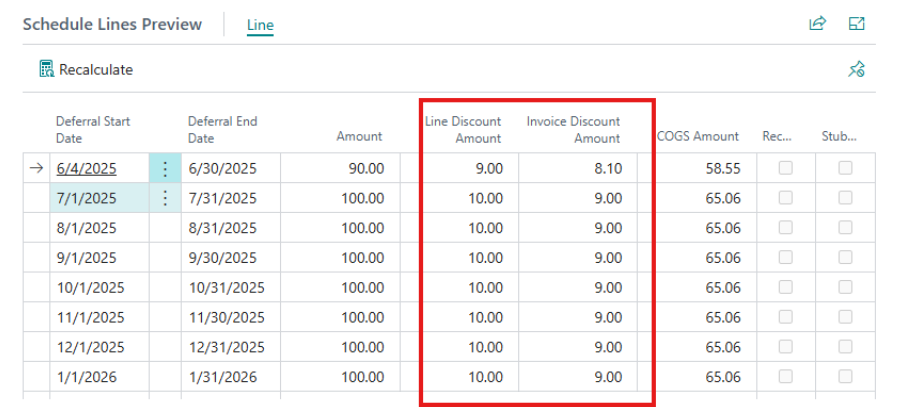
In the screen below:
-
The field “Discount Amount” has been renamed to “Line Discount Amount”.
-
A new field “Invoice Discount Amount” has been added next to Line Discount Amount for clarity.